Prism Central Backup with PCBR: A Deep Dive
Overview
Prism Central is the brain of a Nutanix environment. It holds your VM templates, categories, networking and microsegmentation, disaster recovery configuration, licensing, Kubernetes platform, and a long list of service configurations that took real time to build. If a natural disaster, a power failure, or a bad day in the datacenter takes that instance down, you do not just lose a dashboard. You lose the control plane that ties everything together. That is the problem Prism Central Backup and Restore (PCBR) is built to solve, and this post covers the half of the story that keeps you out of trouble in the first place: understanding what PCBR protects and configuring your backups the right way.
This is part one of a two-part series. Here I cover what PCBR is, why it matters, what it does and does not protect, the version requirements, and how to configure both continuous and point-in-time backups. Part two picks up on the other side of a bad day, walking through the actual steps to recover or migrate a Prism Central instance. If you run Prism Central and have not protected it yet, this is the post to fix that.
What PCBR Is, and Why It Matters
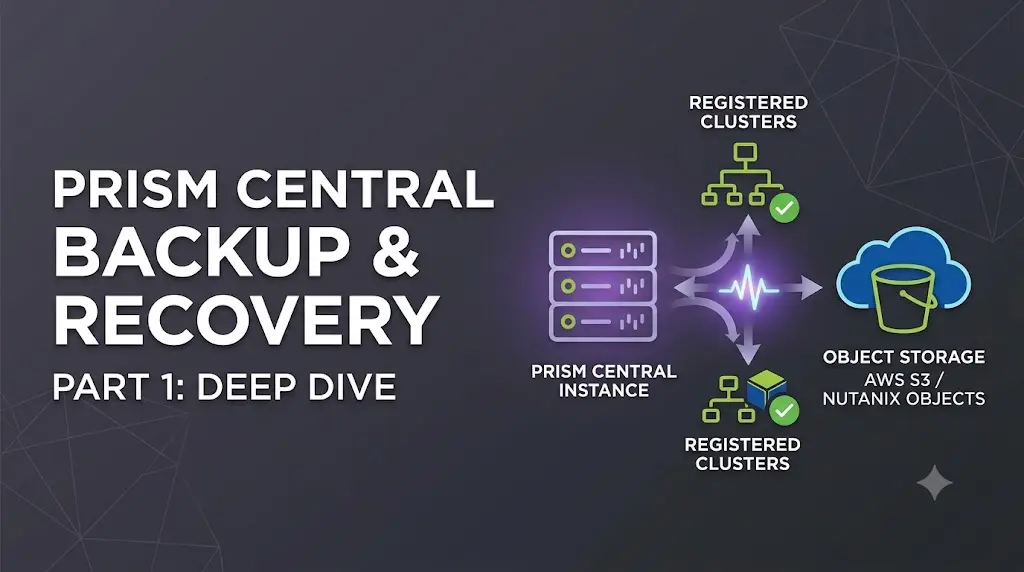
PCBR protects Prism Central instances, including scale-out configurations, against unforeseen events. It backs up the Prism Central instance and the service configurations inside it to one or more of the following: registered Nutanix clusters, AWS S3, a generic S3-compatible object store, or Nutanix Objects. You can also use the same capability to migrate a Prism Central instance from one cluster to another, which I cover in part two.
There is one warning worth putting up front, because it changes how you think about protecting Prism Central. Trying to protect a Prism Central instance with protection domain based disaster recovery, protection policy workflows, third-party backup software, or any other unsupported method renders that instance unrecoverable. PCBR is the supported path, and mixing it with the old approaches is worse than doing nothing. Use PCBR, and only PCBR, for the Prism Central instance itself.
Two Backup Types: Continuous and Point-in-Time
PCBR gives you two automated backup types, and most real deployments end up using both.
- Continuous backup replicates the Prism Central instance and its service configurations in near real time to up to three AHV or ESXi clusters registered to the same Prism Central instance. It is meant for fast, low-loss recovery inside your own environment. Clusters running Hyper-V are not supported.
- Point-in-time backup takes scheduled backups to object storage: AWS S3, a generic S3-compatible object store, or Nutanix Objects. Because it writes to an object store with versioning and object lock, it protects against ransomware and datacenter-level failures, and it lets you recover to a specific moment in time.
You can combine them. A hybrid configuration uses up to three clusters for continuous backup plus one object store for point-in-time, giving you four backup locations in total. The object store side supports exactly one target at a time.
Here is how the recovery objectives compare. These numbers drive which type you lean on for a given failure scenario.
| Continuous backup | Point-in-time backup | |
|---|---|---|
| RPO | 30 minutes | 1 to 24 hours (configurable) |
| RTO | 90 minutes | 90 minutes |
| Targets | Up to three registered AHV or ESXi clusters | One object store (AWS S3, generic S3, or Nutanix Objects) |
| Recovery source | Latest backup only | Any restore point, up to 30 days |
| Restore cluster | Registered cluster only | Any qualifying cluster, registered or not |
A few details behind the table. Continuous backup lets you recover only from the latest backup, and only on a cluster that was registered to the instance. The first backup takes at least 30 minutes to create, then the system syncs configuration data every 30 minutes. Point-in-time backup creates the first restore point immediately, then a new one every RPO cycle, where the RPO can be 1, 2, 4, 6, 8, 12, or 24 hours. Prism Central keeps up to 30 days of restore points, and you can restore from any of them.
What Gets Backed Up, and What Does Not
This is the part to read carefully, because the list of unsupported services is where recoveries go sideways if you assumed something was covered.
Supported services, whose configuration is backed up and recoverable, include Nutanix Disaster Recovery, networking such as AHV VLAN and virtual switch configurations, Flow Virtual Networking (VPCs and virtual networks), Nutanix Kubernetes Platform, Intelligent Operations, Flow Network Security Next-Gen, VM management, cluster management, categories, licensing, reporting templates, Files and Objects configuration (configuration only, not the data), Foundation Central, LCM, Domain Manager (Projects and Marketplace), and OVAs, VM images, and templates. Encryption keys for PCKMS are also covered, with a caveat on small clusters that I cover in part two.
Unsupported services keep running but their data is not backed up, so it is not recoverable: legacy Flow Network Security, Cisco Device Connector, Nutanix Objects data, Files storage data, Power Monitor, and NCM Self-Service. Note that legacy Flow Network Security in pc.7.5 or later does not support PCBR at all, and NCM Self-Service has its own separate backup and restore workflow you need to run manually. Metrics older than 90 days cannot be recovered either.
One more thing to note before a disaster, not after: record your Files version. If you have to recover, you may need it to restore Files to the pre-disaster version.
Requirements Before You Start
Before any of the per-target requirements matter, there is a foundational one: PCBR is only supported when Prism Central runs in a Nutanix environment. If your instance is installed on non-Nutanix ESXi, for example a three-tier vSphere-based cluster, Prism Central does not support Prism Central Backup and Restore at all, along with Nutanix Disaster Recovery and several other portfolio services. On that footprint you need a different protection strategy, so confirm where your instance runs before you plan around PCBR.
Version requirements differ by target, and getting them wrong is the most common reason a restore is not possible later. The important thing to remember is that the restore-side AOS version usually matters more than the backup-side version.
- Continuous backup. Prism Central must run pc.2021.7 or later. Target clusters must be registered to the instance, must not have Native KMS (remote) enabled, must run AOS 6.0 or later, and must have a Data Services IP configured. At least one target cluster must run AOS 6.5.3.1 or later, because continuous-backup restores only work on clusters running AOS 6.5.3.1 or later.
- Point-in-time to AWS S3. Prism Central must run pc.2024.1 or later, and restore requires a cluster on AOS 6.8 or later.
- Point-in-time to Nutanix Objects. Prism Central must run pc.7.3 or later, and restore requires AOS 7.3 or later.
- Point-in-time to generic S3. Prism Central must run pc.7.5 or later, at least one target cluster must run AOS 7.5 or later, and restore requires AOS 7.5 or later.
Across all targets, the Prism Central instance needs NTP configured so its time stays in sync with the registered clusters. Check the Compatibility and Interoperability Matrix for the exact supported combinations before you commit to a design.
Configuring Continuous Backup
Continuous backup is the quickest to stand up because it stays inside your registered clusters. From the Prism Central web console:
- Open the Infrastructure application from the Application Switcher and click the Settings icon.
- Navigate to General > Prism Central Backups.
- Go to Continuous Backup and click Protect Now. This option only appears when one or more clusters are registered to the instance.
- Review the services that will and will not be backed up, then click Continue.
- Select a cluster to back up to, then click Proceed.
You add one backup cluster at a time, up to three, using + Add Backup on the Prism Central Backups page. While the initial sync runs, the instance shows Sync in Progress, and it turns to Synced once configuration data has replicated. The first backup takes at least 30 minutes, then the system syncs every 30 minutes after that.
Configuring Point-in-Time Backup
Point-in-time backup writes to object storage, so there is more setup: creating the bucket, enabling versioning and object lock, setting a lifecycle policy, and creating a scoped user with the right permissions. The Prism Central side of the workflow is the same across targets; the object store side differs. All three targets communicate over port 443, so make sure your firewalls allow it between the Prism Central instance, the Prism Element instance, and the bucket.
The bucket policies, in plain terms
Whichever object store you use, the pattern is the same:
- Enable versioning. A new version is written each time the seed data file lands on a new key path, and the previous version becomes non-current.
- Enable object lock (WORM). Configure this when you create the bucket, with a retention period of 31 days. This is what gives you the ransomware protection.
- Configure a lifecycle rule so stale data is cleaned up automatically. Nutanix recommends expiring current object versions after 31 days, permanently deleting non-current versions after 1 day, and deleting expired delete markers and incomplete multipart uploads after 1 day.
AWS S3 permissions
When you create the scoped user for AWS S3, attach a policy with only the permissions PCBR needs. Give the user programmatic access (no console access) and paste this policy, replacing Bucket_name with your bucket:
 1{
 2    "Version": "2012-10-17",
 3    "Statement": [
 4        {
 5            "Effect": "Allow",
 6            "Action": [
 7                "s3:PutObject",
 8                "s3:GetObject",
 9                "s3:GetObjectVersion",
10                "s3:DeleteObject",
11                "s3:DeleteObjectVersion"
12            ],
13            "Resource": "arn:aws:s3:::Bucket_name/*"
14        },
15        {
16            "Effect": "Allow",
17            "Action": [
18                "s3:ListBucket",
19                "s3:GetBucketLocation",
20                "s3:GetLifecycleConfiguration",
21                "s3:GetBucketObjectLockConfiguration"
22            ],
23            "Resource": "arn:aws:s3:::Bucket_name"
24        }
25    ]
26}
Create the access key with the "Application running outside AWS" option, and save the CSV. You will enter that key on the Prism Central console when you configure the target.
Nutanix Objects and generic S3 permissions
For Nutanix Objects and generic S3-compliant stores, you scope a user with custom permissions rather than a JSON policy. The user does not need full access. Grant only these operations:
- DeleteObject
- DeleteObjectVersion
- GetObject
- GetObjectVersionTagging
- ListBucket
- PutObject
- GetBucketLocation
- GetLifecycleConfiguration
- GetBucketObjectLockConfiguration
- GetBucketVersioning
A couple of target-specific notes. Nutanix Objects bucket names cannot contain a dot, and generic S3 bucket names cannot either in the current PCBR workflow. For Nutanix Objects, securely store the object store certificate including the full certificate chain, because you need it to restore. And commit to one addressing style: if you configure a backup with an IP address, you must recover with that same IP address, and if you configure with an FQDN, you must recover with that same FQDN. Mixing them during recovery is not supported.
Running the configuration
Once the bucket is ready, the console steps are consistent. From Infrastructure > Settings > General > Prism Central Backups, go to Point-in-Time Backup and click Protect Now. Only one point-in-time target is allowed, so if one is already configured, Protect Now will not appear. Click Continue, choose the endpoint type (AWS, Nutanix Objects, or Other S3-Compliant Object Store), and fill in the region or host, bucket name, access key, secret access key, optional certificate, and your RPO. Click Proceed, and the first backup starts immediately, taking at least 15 minutes. To change the RPO or credentials later, use Edit Backup on the point-in-time target.
Where This Leaves Us
At this point you have a Prism Central instance that is protected: continuous backup to your registered clusters, point-in-time backup to an object store, or a hybrid of both. The hardest parts are the ones that are easy to skip, so it is worth double-checking that your AOS versions line up with your restore plan, that you know which services are not covered, and that your object store has versioning and object lock enabled.
Protection is only half the job. The other half is knowing exactly what to do when you actually need to bring Prism Central back, or when you want to move it to a different cluster on purpose. That is the subject of part two, which walks through the restore workflow, the post-restoration checklist, the encryption-key steps, and cluster-to-cluster migration.
If you are running PCBR in production, I would like to hear how it is going. Are you leaning on continuous backup, point-in-time to object storage, or a hybrid of both? Reach out and let me know what your protection strategy looks like, and if this walkthrough helped you protect an instance that was sitting unprotected, that is a win worth sharing.
Connect with me on LinkedIn or reach out at mike@mikedent.io.