PSA: Windows Server 2025 Guest Customization Black Screen
Overview
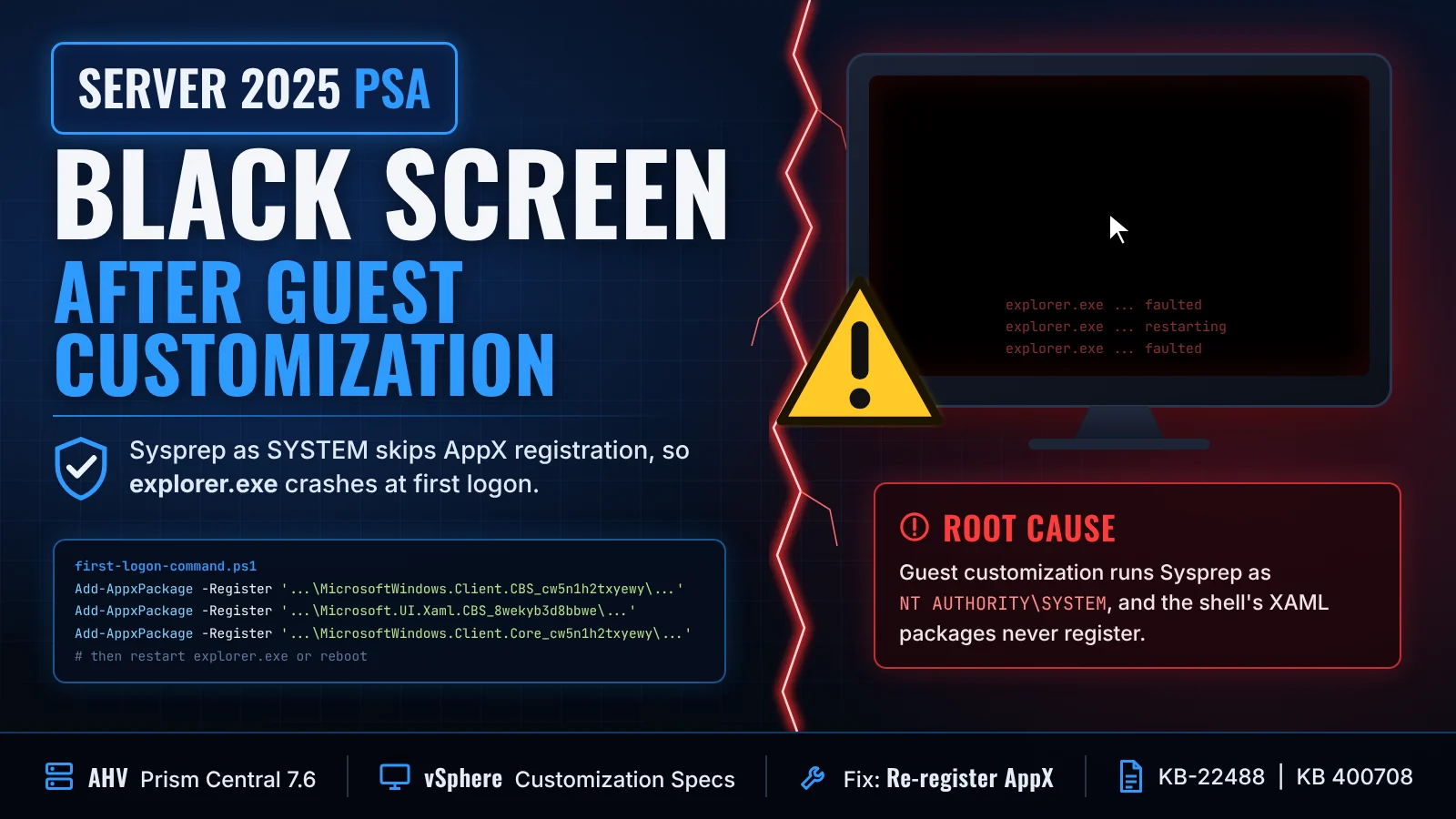
If you build Windows Server 2025 or Windows 11 templates and deploy them with guest customization, this one is worth five minutes of your time. It can turn a routine VM deployment into a black screen at login, and it hits Nutanix AHV and VMware vSphere alike.
I ran into it after deploying a fresh Windows Server 2025 VM from a template in Prism Central 7.6 with a Guest Customization profile. Everything looked perfect. The VM was renamed, the IP was applied, and it joined the domain. Then I logged in and got nothing but a black screen. No desktop, no taskbar, no Start menu.
It isn't a Nutanix problem. The same thing happens with vSphere Customization Specifications, because the root cause sits inside Windows itself. Here's what's going on, how to recover a VM that's already stuck, and how to keep it from happening on your next deployment.
The Symptoms
Here's what I saw, and it lines up with what both Nutanix and Broadcom document:
- Customization looks clean: The VM deploys from a template with Guest Customization (AHV) or a Customization Specification (vSphere), and Sysprep, IP configuration, and domain join all appear to complete.
- No errors in the logs:
C:\Windows\Panther\UnattendGC\setupact.logshows no Sysprep errors. - The desktop never loads: On login,
explorer.exekeeps crashing and you're left with a black screen. - The template works on its own: Deploy the exact same template without a Guest Customization profile and the VM comes up fine.
That last point is the giveaway. The template isn't broken. Something about the customization process is.
On the vSphere side, Broadcom also calls out cases where customization doesn't finish at all. The VM doesn't get renamed, IPs aren't assigned, or the domain join fails. More on why below.
Affected Versions
Per Broadcom's KB, the impacted Windows builds are:
- Windows Server 2025: The focus of the Nutanix KB and where I hit it.
- Windows 11 24H2: Builds newer than the GA build, 26100.1742.
- Windows 11 25H2: GA build 26200.6584 and newer.
If you're also building VDI golden images for Windows 11, this applies to you too.
The Root Cause: Sysprep Running as SYSTEM
Both Prism Central and VMware's guest customization engines kick off Sysprep under the local NT AUTHORITY\SYSTEM account. For years Microsoft considered that unsupported, but it worked fine in practice.
That's no longer the case. Microsoft now explicitly states that running sysprep.exe as Local System isn't supported, and on Windows 11 24H2/25H2 and Server 2025 it actually breaks things. When Sysprep runs in the SYSTEM context, it skips AppX registration for certain XAML-based system packages. Those packages are dependencies for core shell components like explorer.exe and the Settings app. So on first logon, Explorer tries to start, can't find what it needs, and crashes in a loop.
Broadcom also notes a related gotcha. If the AppX Deployment Service (AppXSvc) is disabled in your gold image, Sysprep generalization halts entirely, which is why some vSphere customizations never rename the VM or join the domain. If you've hardened your templates by disabling services, double check that one.
Recovering a VM That's Already Stuck
If you've already got a VM sitting at a black screen, you can recover it without redeploying:
- Open Task Manager. From the VM console, press Ctrl+Shift+Esc. On AHV, if the shortcut doesn't pass through, use the console's Ctrl+Alt+Del button and choose Task Manager.
- Launch an elevated PowerShell. Choose File > Run new task, type
powershell, and check Create this task with administrative privileges. - Re-register the packages. Run Microsoft's re-registration commands:
1Add-AppxPackage -Register -Path 'C:\Windows\SystemApps\MicrosoftWindows.Client.CBS_cw5n1h2txyewy\appxmanifest.xml' -DisableDevelopmentMode
2Add-AppxPackage -Register -Path 'C:\Windows\SystemApps\Microsoft.UI.Xaml.CBS_8wekyb3d8bbwe\appxmanifest.xml' -DisableDevelopmentMode
3Add-AppxPackage -Register -Path 'C:\Windows\SystemApps\MicrosoftWindows.Client.Core_cw5n1h2txyewy\appxmanifest.xml' -DisableDevelopmentMode
- Restart Explorer. Relaunch
explorer.exefrom Task Manager, or just reboot. You should land on a normal desktop.
That's fine for one VM. For anything you deploy regularly, you want the fix baked into the customization so it never happens in the first place.
The Fix on Nutanix AHV (Prism Central)
Nutanix KB-22488 addresses this by adding a First Logon Command to the Guest Customization profile that re-registers the AppX packages and restarts Explorer on the first user logon. If you haven't set up profiles yet, my Guest Customization for Windows in Prism Central post walks through the full workflow.
- Log in to Prism Central with administrator credentials.
- Open Guest Customization Profiles. Go to Compute & Storage > Guest Customization Profiles. The exact path can vary slightly by Prism Central version.
- Edit or create a profile. Update your existing Windows Server 2025 profile, or create a new one.
- Find First Logon Commands. Scroll to the First Logon Commands section. If you're doing this inline during a clone or deploy from template workflow, you may need to expand Advanced Settings first.
- Paste the command. Add the following as a single line:
1powershell.exe -NoProfile -ExecutionPolicy Bypass -Command "$env:COPYPROFILE='TRUE'; Get-AppXPackage -AllUsers | Foreach {Add-AppxPackage -DisableDevelopmentMode -Register \"$($_.InstallLocation)\AppXManifest.xml\"}; stop-process -name explorer -Force -ErrorAction SilentlyContinue; taskkill /f /im explorer.exe; reg add \"HKLM\SOFTWARE\Microsoft\Windows\CurrentVersion\AppX\" /v \"DisableDeployment\" /t REG_DWORD /d 0 /f; start-process explorer.exe"
- Save the profile and use it any time you deploy or clone a Server 2025 VM.
A couple of notes from working through this:
- Watch the copy and paste: The command in the KB wraps across lines, and depending on how you copy it, you can end up with
AddAppxPackageinstead ofAdd-AppxPackage. Make sure it's a single line with the hyphen intact. - It's a broad brush: This command re-registers every AppX package for all users, not just the three Microsoft calls out. It works, but it adds time to that first logon. If you'd rather be surgical, Microsoft's targeted three-package version in the vSphere section below works as a First Logon Command too.
The Fix on vSphere
On the vSphere side, Broadcom KB 400708 has you add Microsoft's targeted commands to the RunOnce section of the Windows Customization Specification, followed by a reboot:
1powershell.exe -ExecutionPolicy Bypass -Command "& {Add-AppxPackage -Register -Path 'C:\Windows\SystemApps\MicrosoftWindows.Client.CBS_cw5n1h2txyewy\appxmanifest.xml' -DisableDevelopmentMode; Add-AppxPackage -Register -Path 'C:\Windows\SystemApps\Microsoft.UI.Xaml.CBS_8wekyb3d8bbwe\appxmanifest.xml' -DisableDevelopmentMode; Add-AppxPackage -Register -Path 'C:\Windows\SystemApps\MicrosoftWindows.Client.Core_cw5n1h2txyewy\appxmanifest.xml' -DisableDevelopmentMode; shutdown -r -t 5 -f}"
Broadcom notes their engineering team is still investigating a permanent fix, so treat this as a workaround for now.
Watch Out for the April 2026 Update
This one caught my attention in the Broadcom KB. If your template has the April 14, 2026 update (KB5082063) in its update history, running Add-AppxPackage from the customization's RunOnce consistently fails. Their recommendation is to build a new template from the latest Windows Server 2025 media, or apply the July 14, 2026 update (KB5099536) directly, skipping KB5082063 entirely.
Broadcom's KB is written for vSphere, but since the underlying behavior is in Windows, I'd keep an eye on it for AHV templates too. If the First Logon Command isn't fixing your black screen, check your template's update history first.
Template Hygiene Tips
A few other things worth doing to keep Server 2025 templates healthy:
- Patch after customization: Broadcom recommends running Windows Updates once customization completes rather than piling updates into the template between generalizations.
- Leave AppXSvc enabled: Don't disable the AppX Deployment Service in your gold image.
- Cycle the template: I've read about some folks having luck converting the template back to a VM, powering it on, powering it off, and converting it back to a template.
- Test without customization: If a plain deploy from the template works and a customized one doesn't, you're almost certainly looking at this issue.
Final Thought
This is a good reminder that "unsupported but works" has a shelf life. Microsoft tightened up how Sysprep behaves under SYSTEM, and every platform that relies on that pattern for guest customization got caught by it, Nutanix and VMware alike. Until the platform vendors change how they invoke Sysprep, adding the AppX re-registration as a First Logon (AHV) or RunOnce (vSphere) command is the way forward.
If you're building Server 2025 or Windows 11 24H2/25H2 templates, update your customization profiles now, before the next deployment leaves someone staring at a black screen.
Have you hit the black screen on your Server 2025 or Windows 11 deployments, or found a cleaner workaround for your templates? I'd love to hear how you're handling it. Connect with me on LinkedIn or reach out at mike@mikedent.io.
References
- Nutanix KB-22488: Windows Server 2025 Guest Customization Results in Black Screen (Nutanix Support portal login required)
- Broadcom KB 400708: Booting a customized Windows 11 24H2/25H2 or Windows Server 2025 virtual machine may be blocked by a black screen
- Microsoft Learn: Fix black screen after running Sysprep as system on Windows 11 or Windows Server 2025